Dashboard
Links
Create branded short links, track every click, and see where your traffic comes from.
app.cdnzero.com
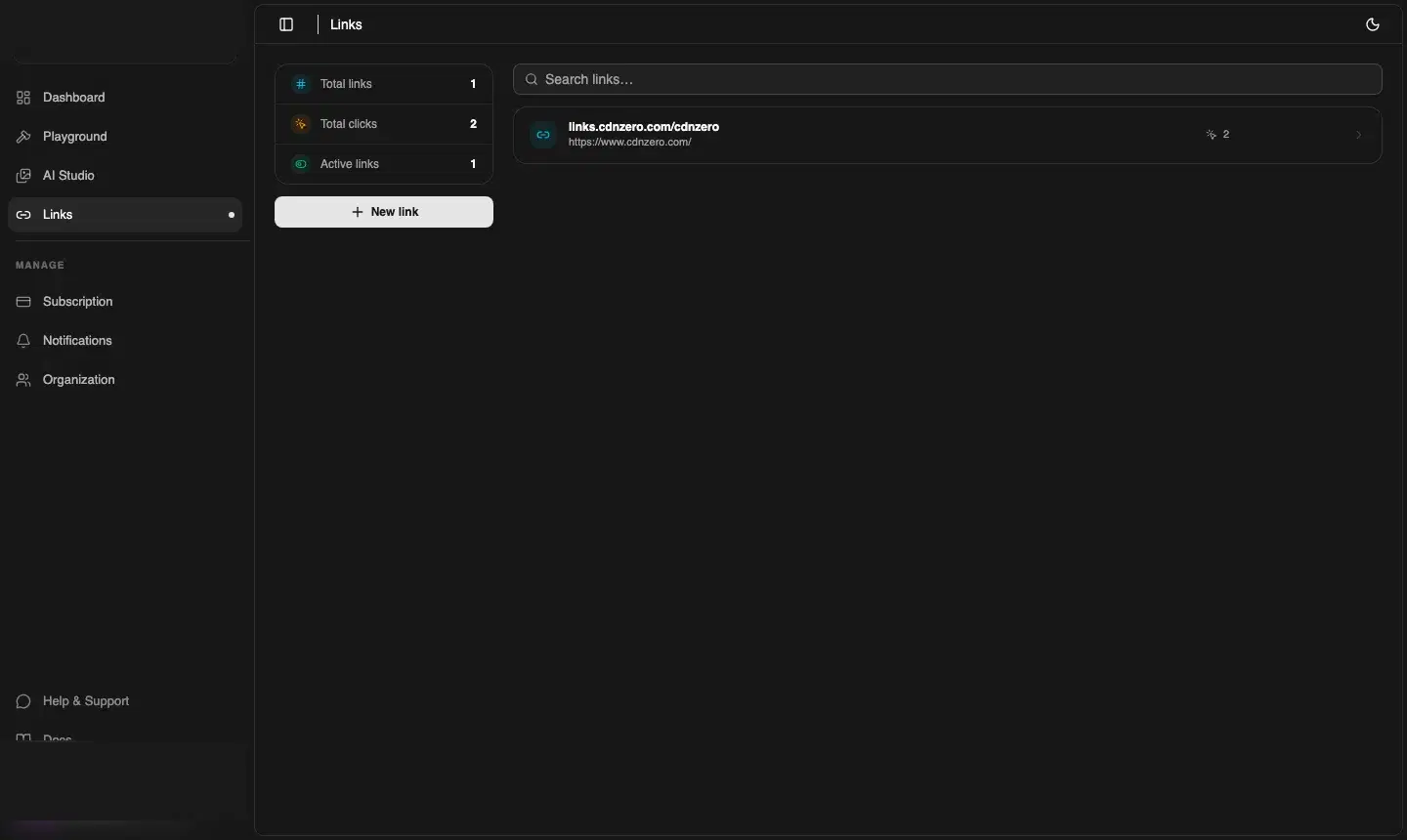
The Links page layout
The Links page has two panels:
- Left panel — org-wide stats: Total links, Total clicks, Active links
- Right panel — searchable list of all your short links with their click counts
Creating a short link
- Click + New link in the left panel
- Paste your destination URL
- Optionally enter a custom slug (e.g.
launch-2025) — this becomes the path afterlinks.cdnzero.com/ - Optionally add a title for your own reference
- Optionally set an expiry date — after this date the link stops redirecting
- Click Create
Your short link is live immediately at links.cdnzero.com/your-slug.
💡 Custom slugs
Custom slugs make links memorable for campaigns — e.g.
links.cdnzero.com/black-friday. If your chosen slug is already taken in your org, choose a different one.Click analytics
Click any link in the list to open its detail view. You'll see:
- Total clicks, clicks in the last 7 days, and last 30 days
- Daily click chart — bar chart of clicks per day
- Top referrers — which sites or platforms are sending the most traffic
Managing links
- Toggle active/inactive — pause a link without deleting it; inactive links return a 404
- Update expiry — extend or remove the expiry date at any time
- Delete — permanently removes the link and its analytics
API: Create a short link
bash
curl -X POST https://api.cdnzero.com/links \
  -H "Authorization: Bearer YOUR_ACCESS_KEY" \
  -H "Content-Type: application/json" \
  -d '{
    "original_url": "https://www.cdnzero.com/pricing",
    "slug": "pricing-june",
    "title": "Pricing page — June campaign"
  }'
Response
{
  "id": "lnk_a1b2",
  "short_url": "https://links.cdnzero.com/pricing-june",
  "click_count": 0,
  "is_active": true
}