Getting Started
Quick Start
Get from zero to a live CDN URL in under 5 minutes.
Step 1 — Create your account
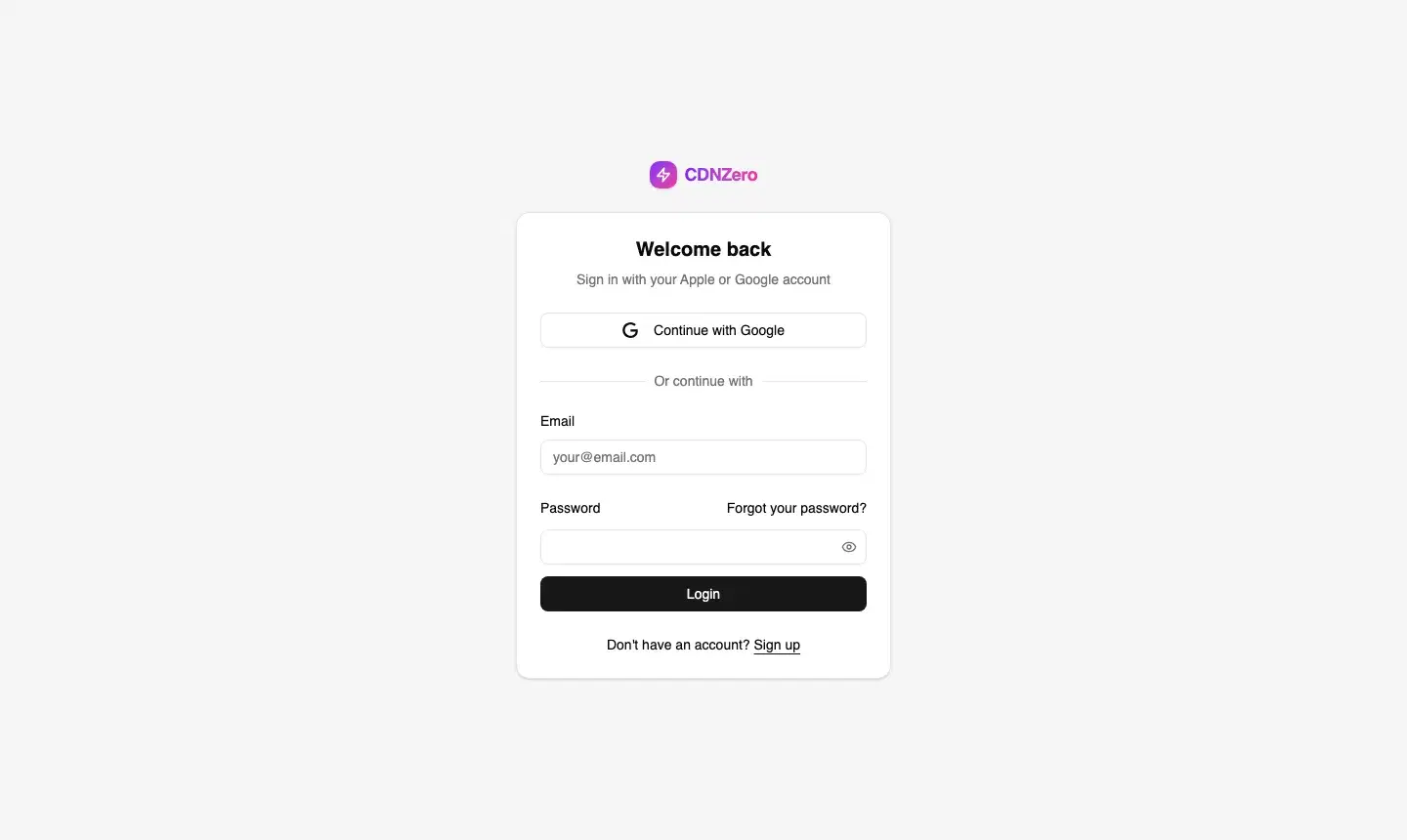
Visit app.cdnzero.com/signup and sign up with Google or email. After signing up with email you'll receive a verification code — enter it to activate your account.
app.cdnzero.com
Step 2 — Explore the Dashboard
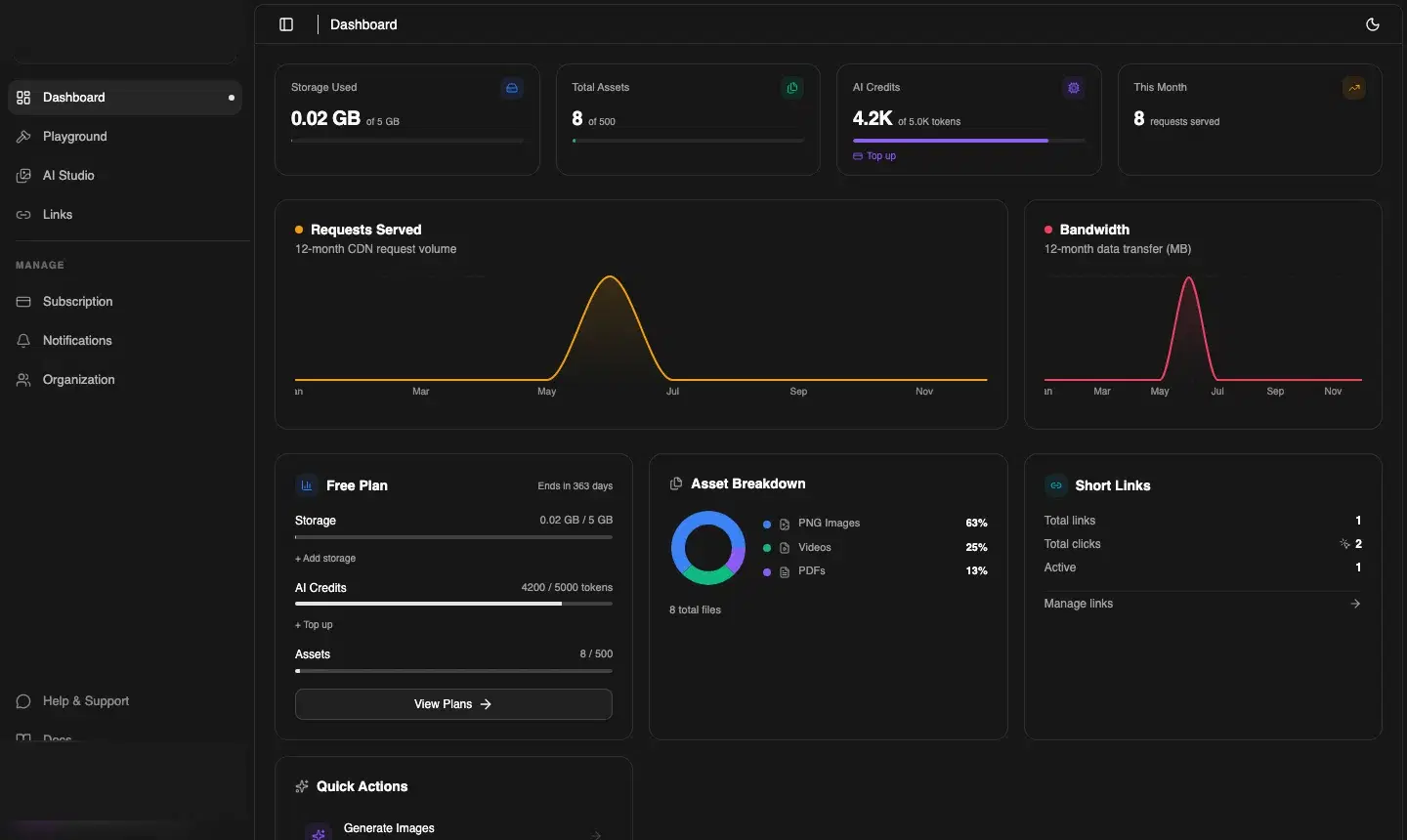
After signing in you land on the Dashboard. It shows four summary cards at the top:
- Storage Used — how much of your plan's storage quota is consumed
- Total Assets — number of files you've uploaded
- AI Credits — credits remaining for image and video generation
- This Month — CDN requests served this billing period
Below those you'll see 12-month charts for Requests Served and Bandwidth, your plan card, asset type breakdown (PNG, Videos, PDFs), and Short Links stats.
app.cdnzero.com
Step 3 — Upload your first file
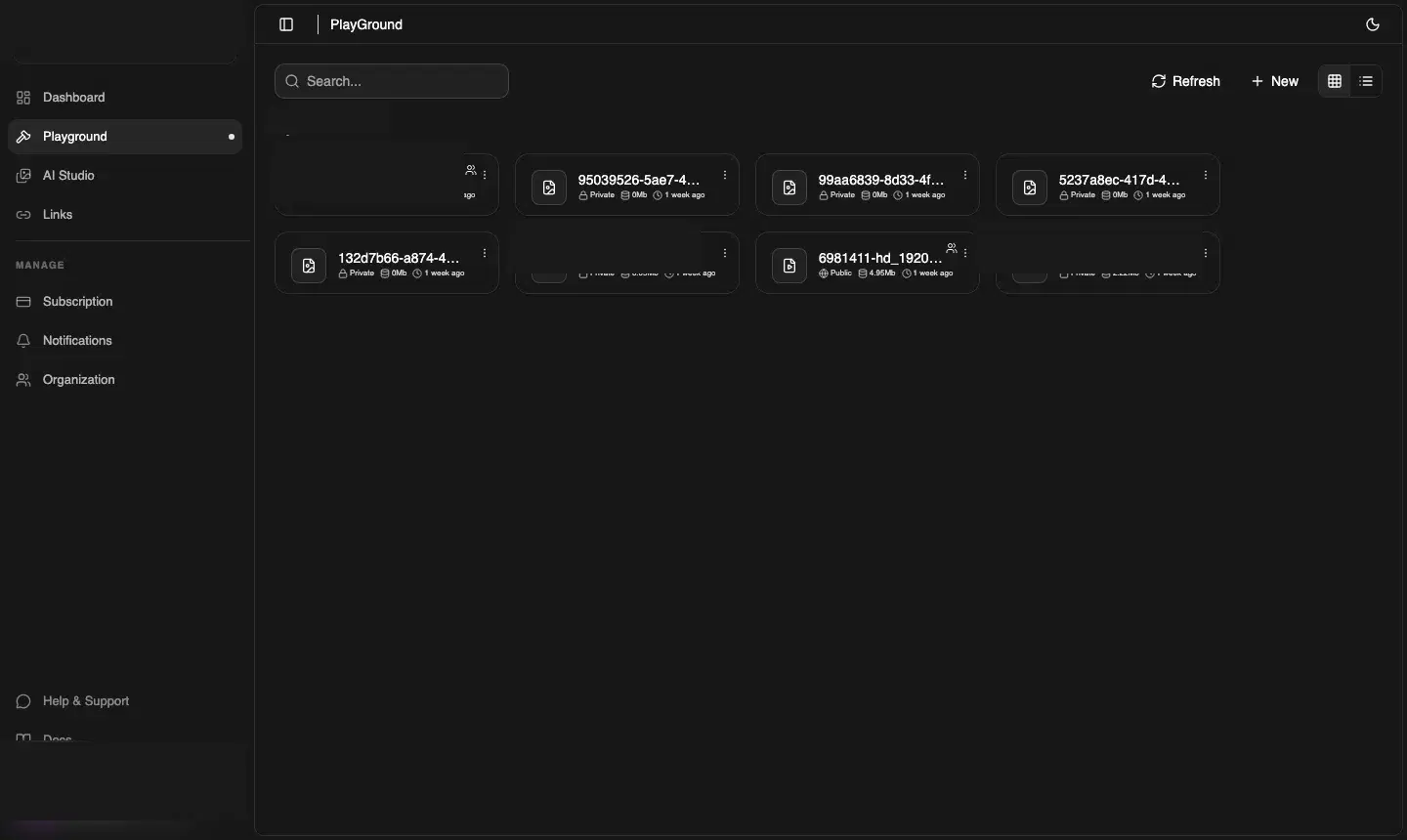
- Click Playground in the left sidebar
- Click New (top-right) → New Folder to create a collection, or click New → Upload File directly
- Drag and drop a file, or click to browse
- CDNZero uploads it in 5 MB chunks automatically — watch the progress indicator
- Once complete the file appears in the grid with its size and timestamp
app.cdnzero.com
💡 Public vs Private
When creating a folder or uploading a file, choose Public to get a direct shareable CDN URL, or Private if you'll serve it through signed URLs from your backend.
Step 4 — Generate an AI image
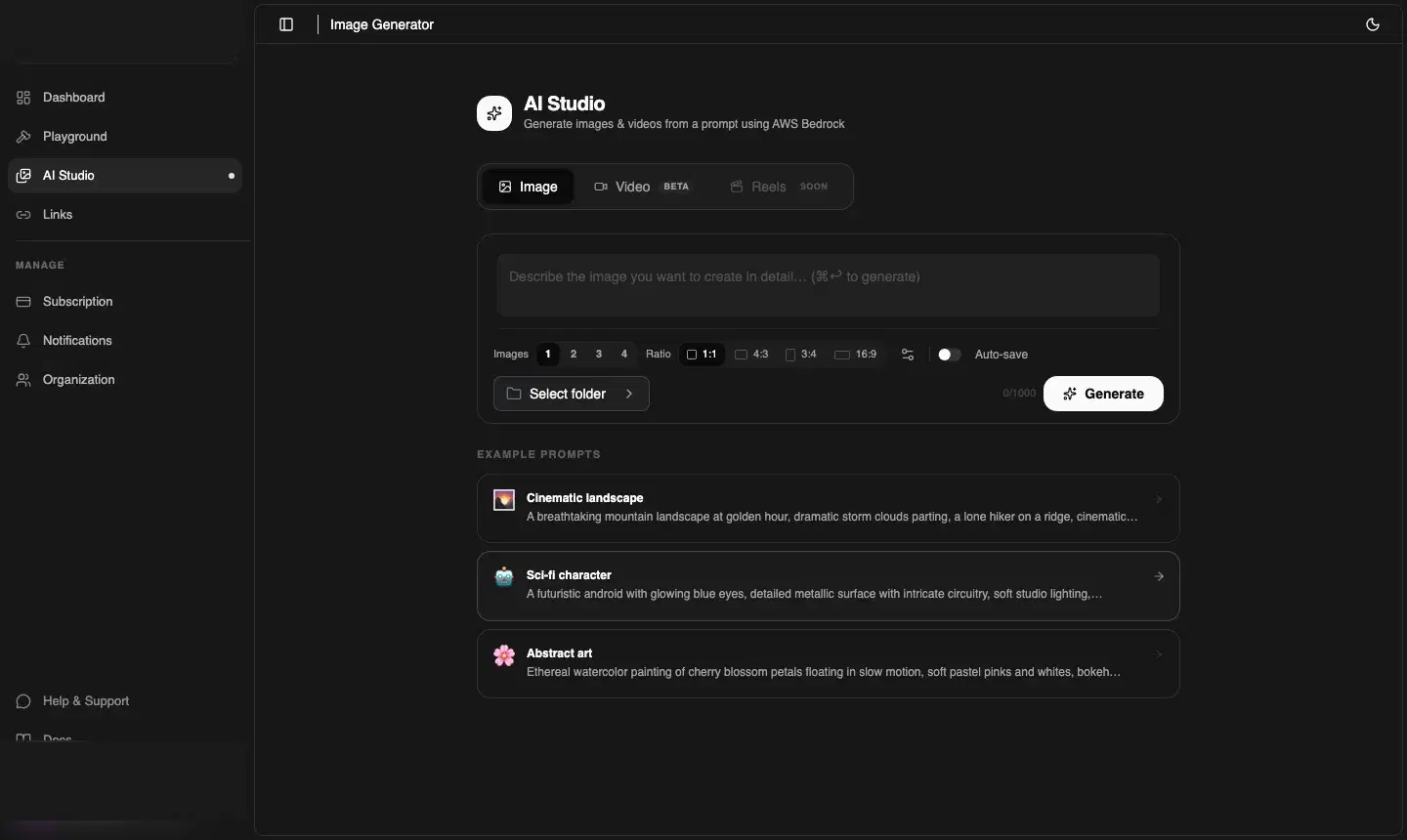
- Click AI Studio in the sidebar
- Make sure you're on the Image tab
- Type a prompt in the text box (e.g. "Minimalist SaaS dashboard hero, dark mode, violet gradient")
- Choose how many images (1–4) and your preferred aspect ratio
- Click Generate — your images appear within seconds
app.cdnzero.com
Step 5 — Create a branded short link
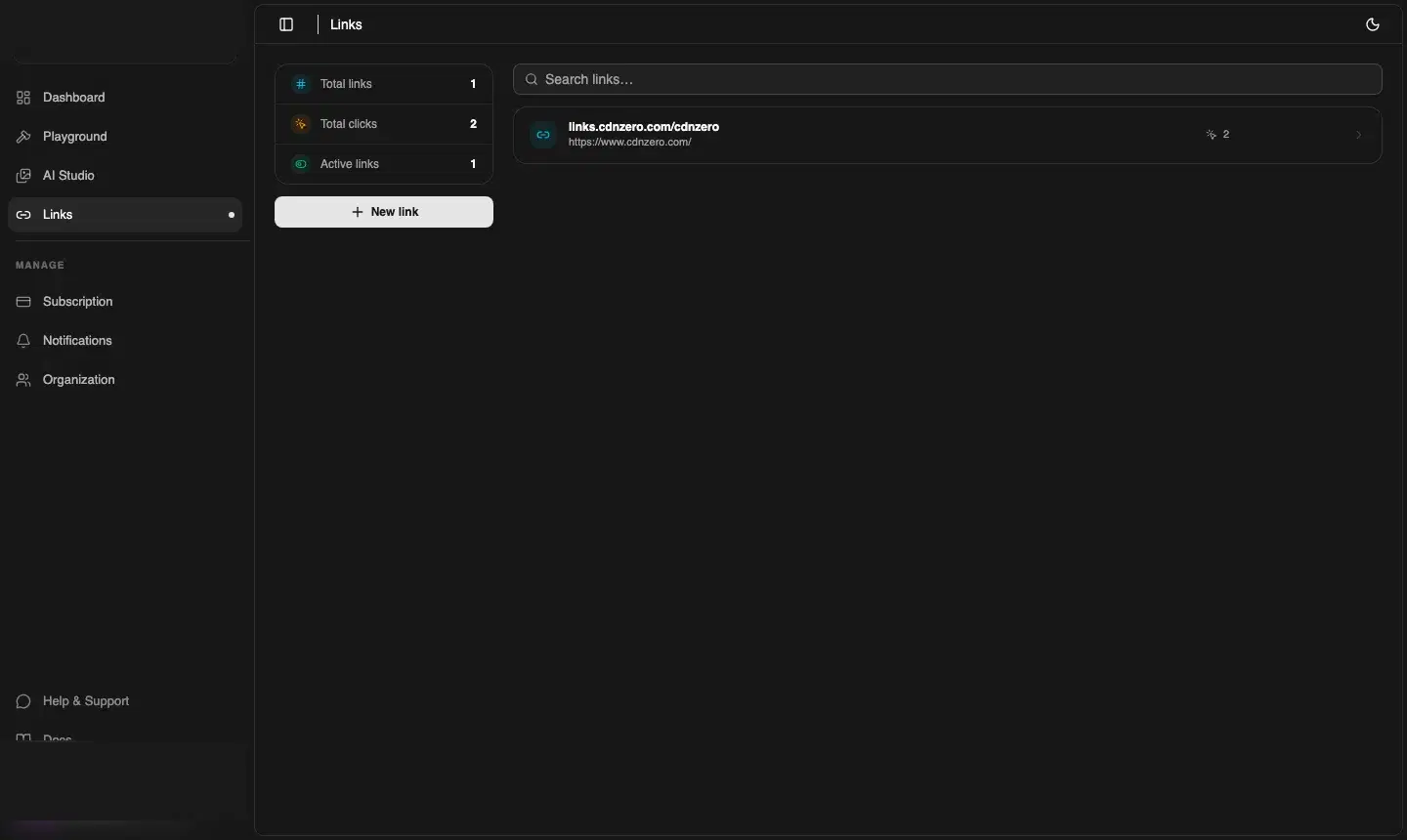
- Click Links in the sidebar
- Click + New link
- Paste any destination URL
- Optionally set a custom slug, title, and expiry date
- Your short link is live at
links.cdnzero.com/your-slug
app.cdnzero.com
ℹ️ You're ready!
You've uploaded a file, generated an AI image, and created a short link. Explore the rest of the docs to learn about API access, team management, and your subscription.