AI Image Generation
Generate production-quality images in seconds using AWS Bedrock diffusion models.
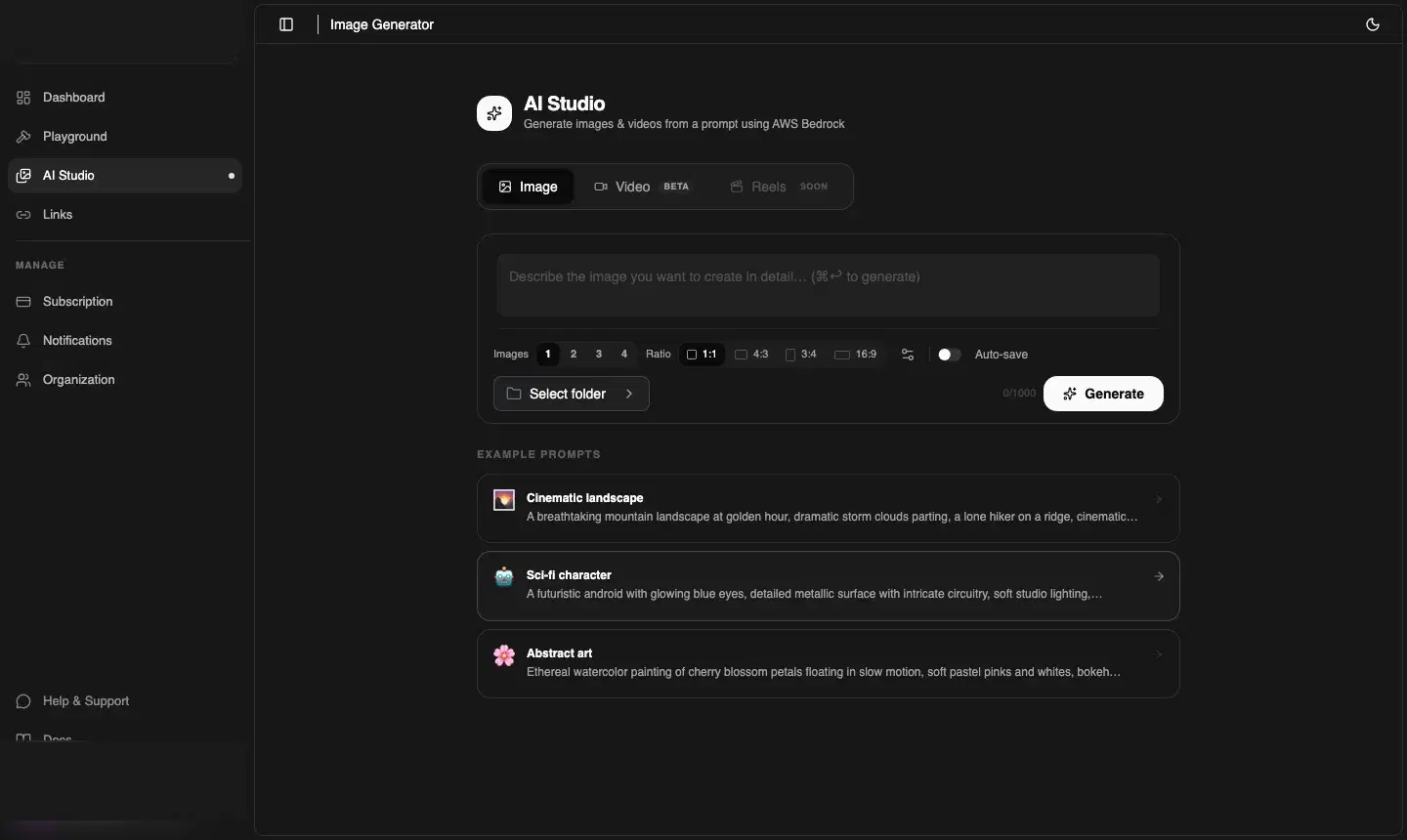
Powered by AWS Bedrock
CDNZero's image generation is powered by state-of-the-art diffusion models via AWS Bedrock. The GPU clusters are optimised for inference latency — most single-image requests complete in under 10 seconds.
Controls at a glance
| Control | Options | Notes |
|---|---|---|
| Images | 1, 2, 3, 4 | Each image costs 1 credit |
| Ratio | 1:1, 4:3, 3:4, 16:9 | Choose based on where you'll use the image |
| Auto-save | Toggle on/off | Saves generated images to your Playground automatically |
| Select folder | Any Playground folder | Determines where auto-saved images are stored |
Example prompts by use case
Marketing hero
"Minimalist SaaS dashboard screenshot, dark mode, violet accent, modern UI, clean white background, 16:9"
Blog cover
"Abstract tech illustration, neural network nodes, gradient blue to purple, flat design, 16:9 landscape"
Product photo
"White wireless headphones on a clean white studio background, soft shadows, high-resolution product photography, 1:1"
Social media post
"Bold typography quote card, neon green on black background, Instagram square format, minimal"
App icon
"Flat icon of a lightning bolt inside a rounded square, violet gradient, clean, app store style, 1:1"
Prompting tips
- Be specific about style — mention photography, illustration, 3D render, flat design, etc.
- Specify colours — "violet gradient", "neon green on black", "pastel pinks"
- Include the aspect ratio in the prompt text as well as the control — e.g. "16:9 landscape format"
- Describe the mood — "cinematic", "minimalist", "dramatic storm lighting", "clean and airy"
- Add negative hints — "no text", "no watermark", "no people" if needed
💡 Use example prompts as starting points
After generation
Generated images appear in a grid below the controls. For each image you can:
- Download — save to your device
- Save to Playground — add to your CDN storage (if auto-save was off)
- Copy CDN URL — if the image was saved, copy its direct CDN URL for embedding