Manage
Organization & Team
Manage your team, invite members, and monitor your organisation's resource usage.
app.cdnzero.com
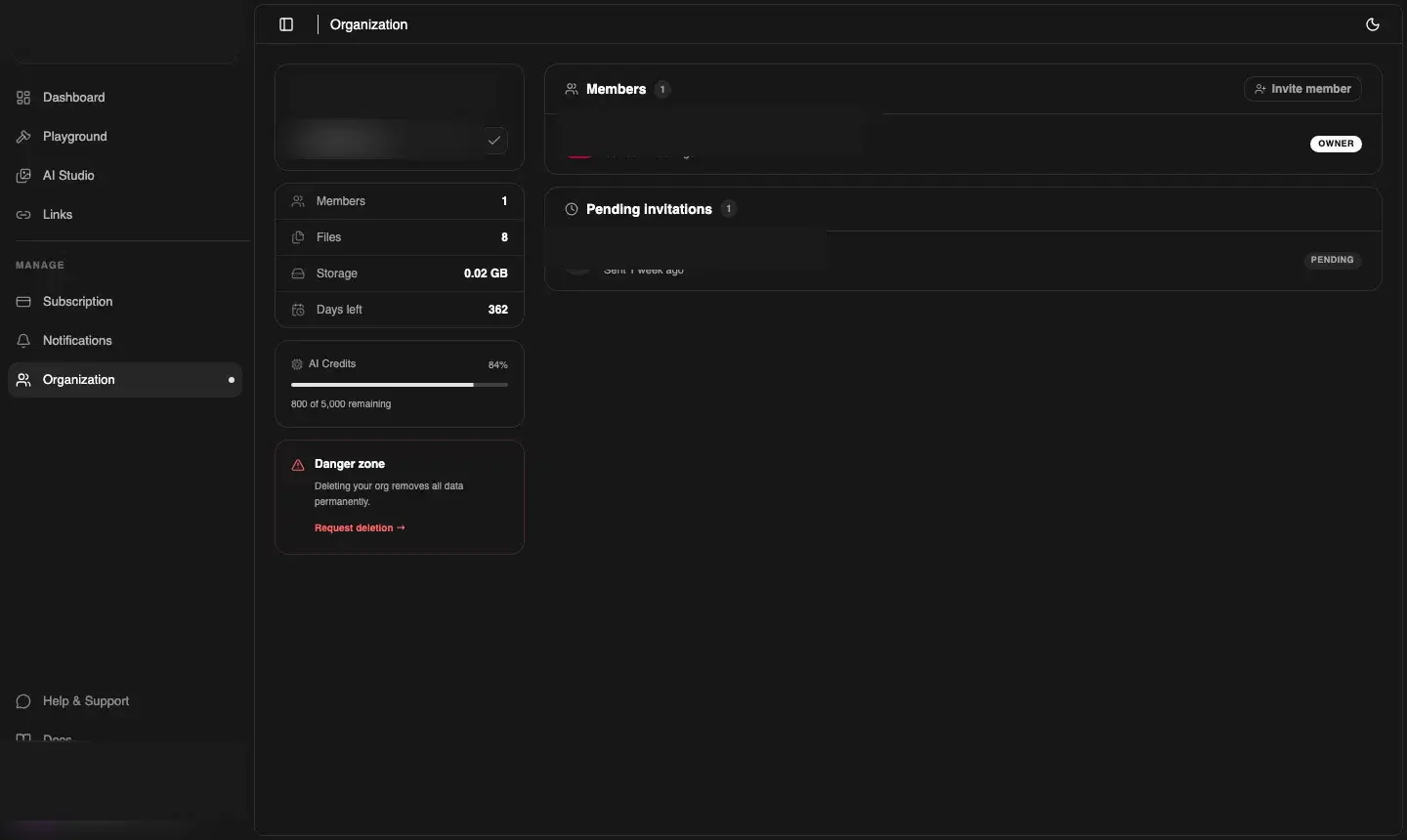
Organisation overview (left panel)
The left panel shows:
- Org name — click the pencil to rename. Changes take effect immediately across all member sessions
- Members count — total active members
- Files — total files across all Playground folders
- Storage — GB used by your org
- Days left — days until your current plan renews or expires
- AI Credits — progress bar showing % consumed, with the exact remaining count below
- Danger zone — irreversible actions (see below)
Team members (right panel)
The Members panel lists every active member with their email, join date, and role badge. The right column shows Pending Invitations — members you've invited but who haven't accepted yet.
Inviting a team member
- Click Invite member (top-right of the Members panel)
- Enter their email address
- Click Send invite
- They receive an email with a setup link — once they accept, they join with the
developerrole
ℹ️ Developer role
Invited members join as developer. They can use Playground, AI Studio, Links, and API Keys — but cannot see Subscription, Notifications, or Organization settings. Only the owner can access those.
Removing a member
Hover over any active member row and click the remove button. Their access is revoked immediately — any active session is terminated and their API keys are invalidated.
Switching organisations
If you belong to multiple organisations (e.g. a personal account and a client workspace), click the organisation name in the top-left corner of the sidebar to open the org switcher. Switching generates a new session scoped to the selected org.
Danger zone
🚨 Irreversible
Request deletion permanently removes your organisation, all files, and all data. This cannot be undone. CDNZero will confirm via email before processing the deletion request.